How do I start a new work order?
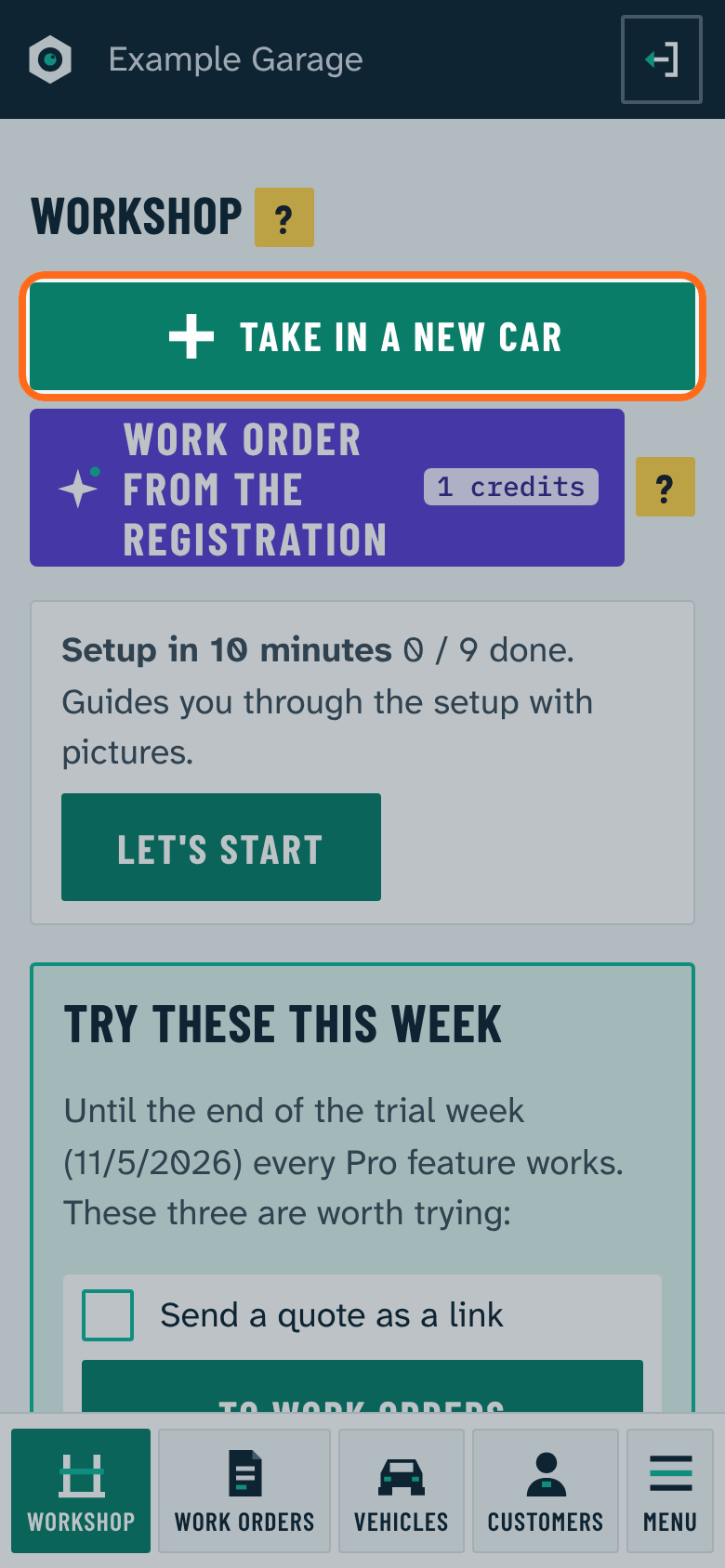
On the phone, start on the Workshop page with Take in a new car.
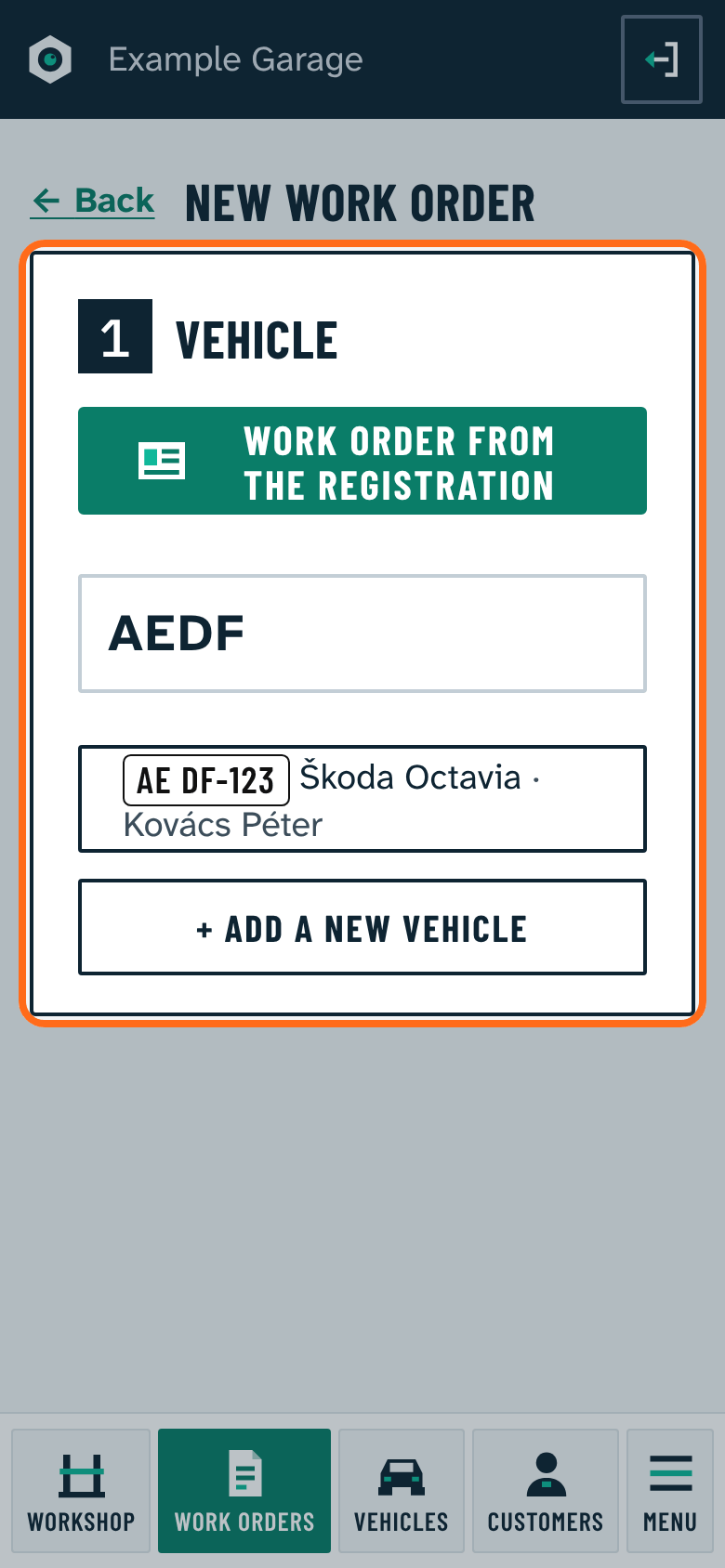
- Type the plate. Spaces and dashes are optional: "aedf123" finds "AE DF-123".
- Pick the car from the list. If it is not in the program yet, add it right there with Add a new vehicle.
- The customer (the vehicle's owner) is filled in automatically. Another customer can be chosen.
- Enter the odometer reading (required, unless you leave the intake to the mechanic, see below) and the customer's request in their own words.
- Once saved, the work order is ready for its lines.
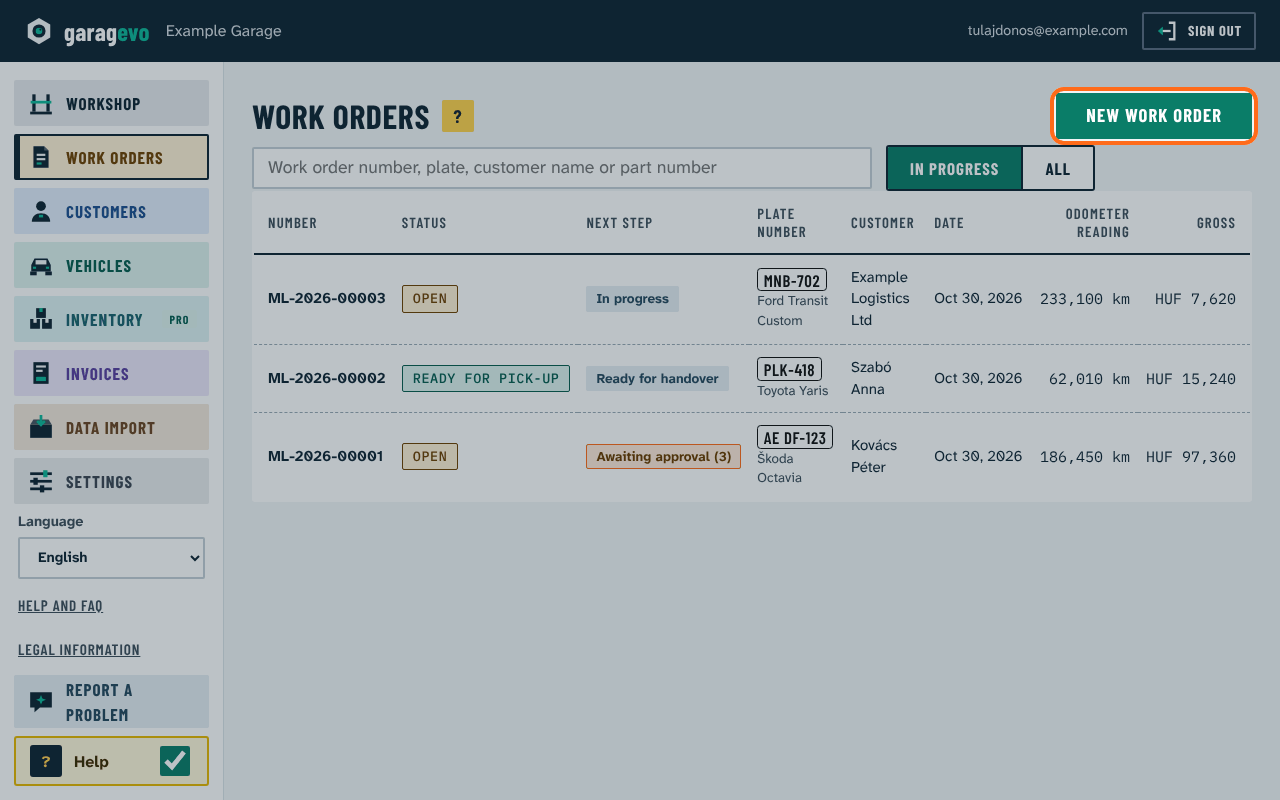
On the computer the same is in the Work orders menu with New work order. For a car already in the program, New work order for this car on the vehicle page works too.
When the mechanic does the intake: if you open the work order in the office and choose another mechanic as responsible, the tick The mechanic does the intake appears, ticked by default. Then the customer, the car and the request are enough. The work order shows an orange Waiting for intake; on his phone the mechanic taps Start intake, enters the odometer reading, takes the photos and finally taps Intake done. Until then no line can be added, and the work order cannot be set ready or closed.
On a computer the intake receipt print opens right after saving (it can be switched off in Settings): the customer signs it on paper, and you mark it on the work order with The customer signed on paper. The signature pad opens by itself only on a phone or tablet.